
e. Track Board
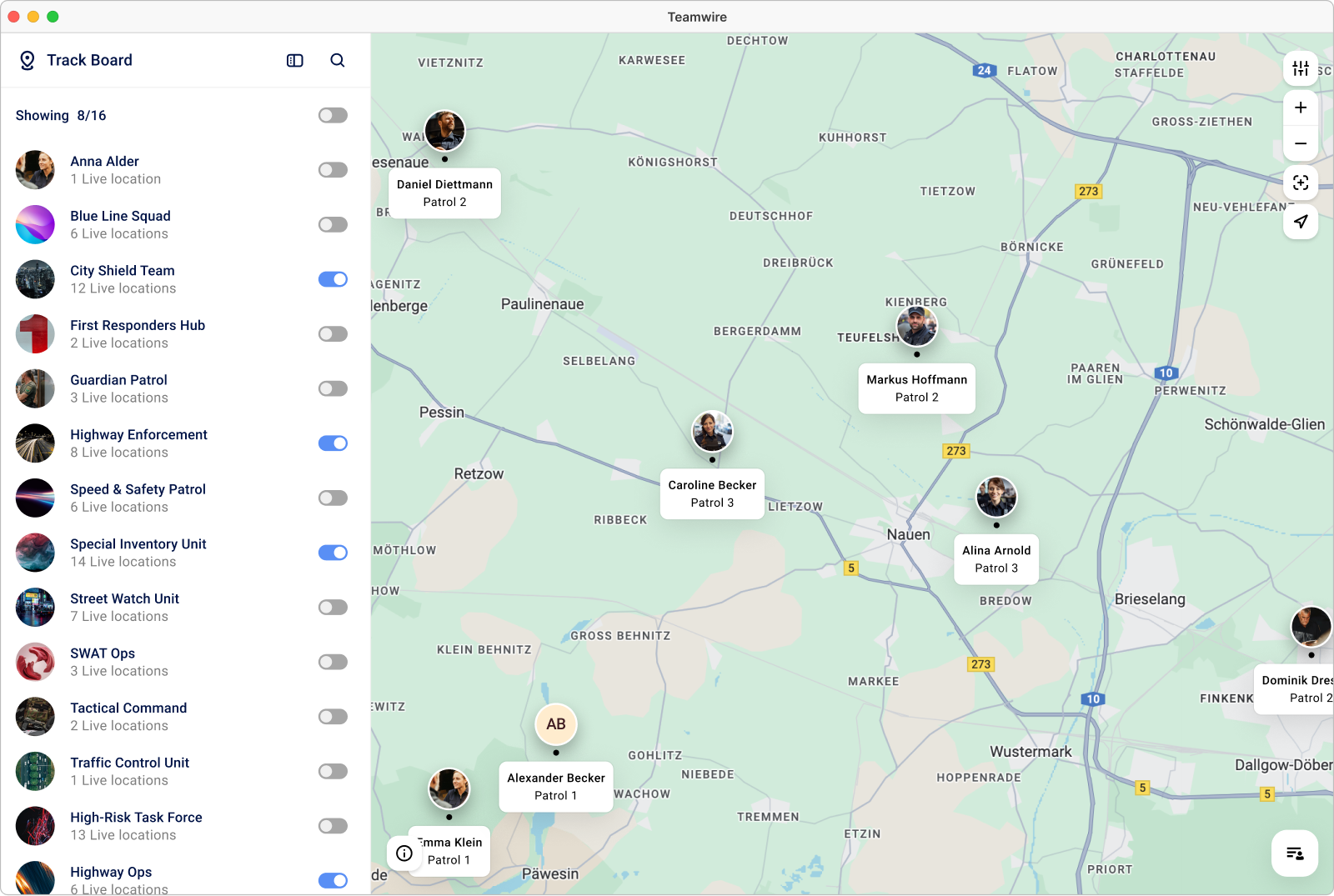
The Track Board is an enhanced live location feature for the Desktop app and the Web Client.
It provides a centralised map view of all active live locations.
It allows you to see all chats you are a member of where live locations are currently being shared. Easily decide which chats should be displayed on the map to see exactly the information that is relevant to your work.
The Track Board is interactive: Select a user to retrieve details about their location or profile info, mention them in a message, or open the shared chat.
Open Track Board
Click the  Track Board icon located above your inbox. The map will open in a separate window, allowing you to use it side-by-side with your chats.
Show/hide chats
By default, all chats are enabled in the Track Board's map view.
Using the side panel on the left, you can manage shared live locations for each chat by toggling the individual switches to:
 hide them
 show them
Alternatively, you can use the header toggle to show or hide all chats on the map at once.
Display options
The live map offers different actions and settings to view users and map material.
 Map settings
Click the symbol to open the map settings.
- Show user names
If enabled, in addition to the user photos, their names will be displayed on the map.
- Show job titles
If enabled, in addition to the user photos, their profile's job title will be displayed on the map.
- Show areas
If enabled, the areas drawn by users will be displayed on the map.
- Group users
Enabled by default. Users who are in close proximity to each other are grouped together.
- Show user names
 Regroup
When you click this symbol, Teamwire automatically zooms out until all currently shared locations fit on one map view.
- Focus user
Click on one of the users to focus on them. This way, the user will always remain in the center of the map view. In the Web Client, this feature is available via with the icon.
icon.
Interactions

Send message
 Hover over a user to
 mention them in a shared chat.
 jump to the shared chat.
These actions are performed in the Teamwire app main window, automatically opening the corresponding chat view.
If you share multiple chats with a user, you can simply select the specific chat you wish to interact in.
Open contact details
Click on a user to find detailed information about their current location.
With the  symbol you can open a dialog to see their coordinates and contact info.
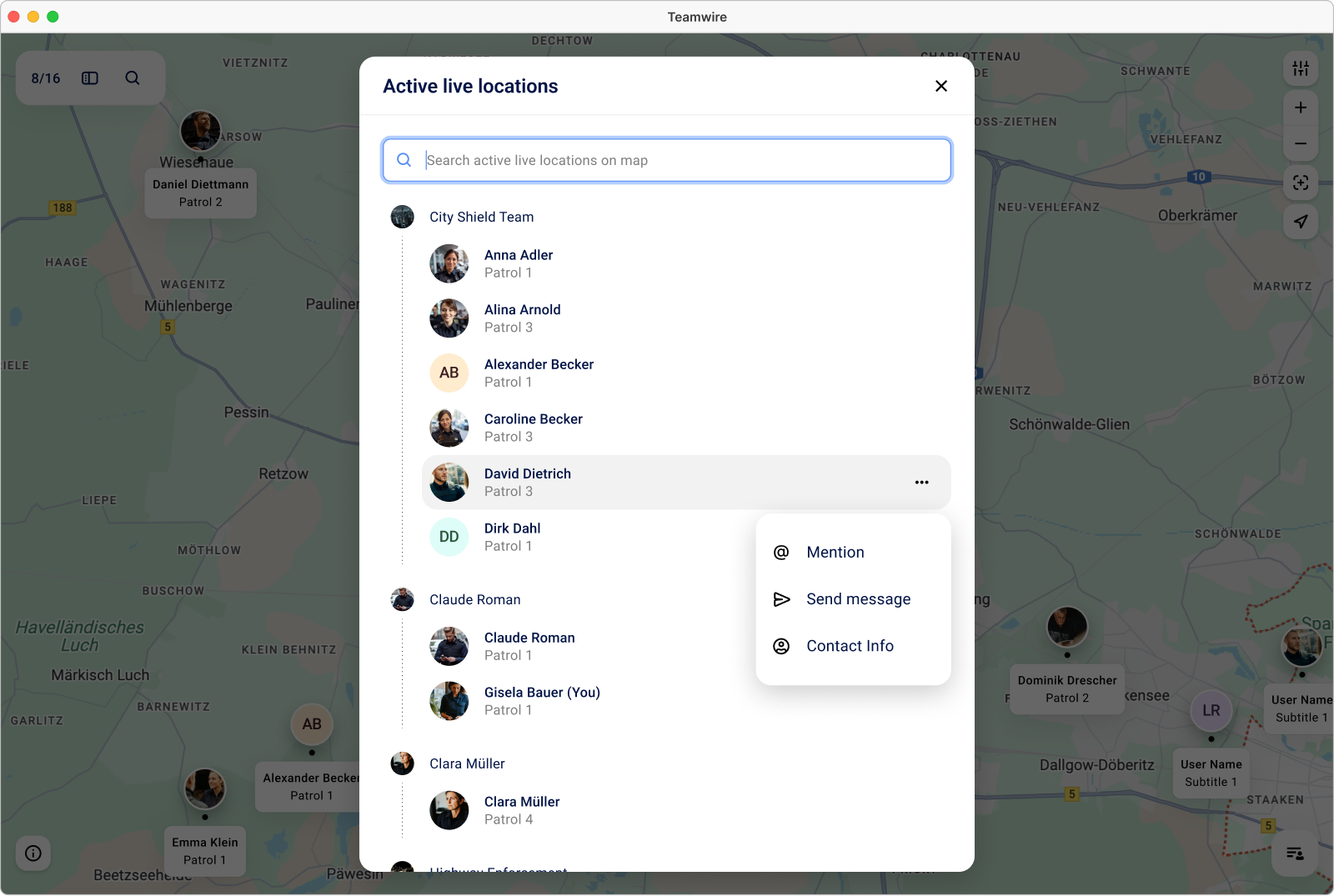
Search / user list
Using the side panel on the left, you can search for a user by clicking on the  icon.
icon.
Alternatively, you can open the search dialog via the  user list in the lower-right corner of the live map.
The search function covers the following information:
- Name
- Job title
- Department
The search results allow you to
- click on a user to return to the map view and focus on that user.
- open a context menu to choose how you want to interact with the user:
 mention them in a shared chat
 jump to the shared chat and compose a message
 open their contact details